



Note: The conditions for correct connection of data carriers are given in appendix 3.
You can switch to video playback mode in the following ways:
- connect SD card (without audio files), if the USB drive is not connected:
- connect USB drive (without audio files), if SD card is not connected;
- by pressing the Video button (figure 2);
- by pressing the MODE button (figure 1), if one of the devices is connected: SD card or USB flash drive.
Note: When Video mode is in paused state (indicator 8, figure 2) re-entering will switch the radio receiver to video file playback mode.
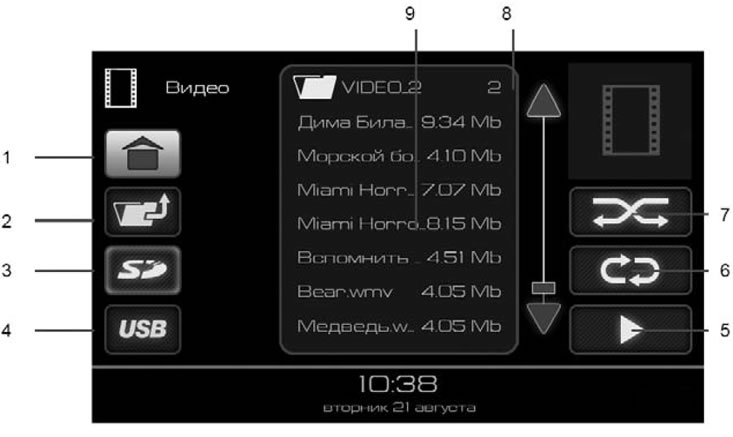
Figure 6. "VIDEO" mode window
- 1 - button to go to the main menu;
- 2 - button to move from a folder one level up;
- 3 - SD memory card selection button as a source;
- 4 - button to select USB drive as a source;
- 5 - play button;
- 6 - button to turn on the repeat playback mode;
- 7 - button to turn on random playback mode;
- 8 - buttons for scrolling through the list of video files;
- 9 - list of video files with cursor on the selected video file.
Selecting video files
The radio receiver supports playback of video files of the following formats:
- Video codec - wmv3.
- Frame size - 320x240px.
- Frame rate - 25 fps.
- Video bitrate - up to 750 kbps.
- Audio codec - wma.
- Sampling frequency 44100 Hz.
- Audio bitrate - 128 kbps.
To convert video files, you can use any available video converter.
Video files and folders available for playback are displayed in the list (9), Figure 7. Double-click on the folder image
 will display a list of video files in this folder. To exit the folder, press button 2 (figure 6).
To start playing video files, you need to do the following:
- or double-clicking on the selected file allows you to play it, while the function of enabling the repeat playback mode of the selected file is available (button 6, figure 6);
- or clicking on the play file button (button 6, figure 6) allows you to play all video files in the list (9) in Figure 6;
- or select a folder by single clicking on the folder image in the list (9) figure 6, and then click the play file button (button 5, figure 6) allows you to play all video files located in the selected folder and its subfolders.
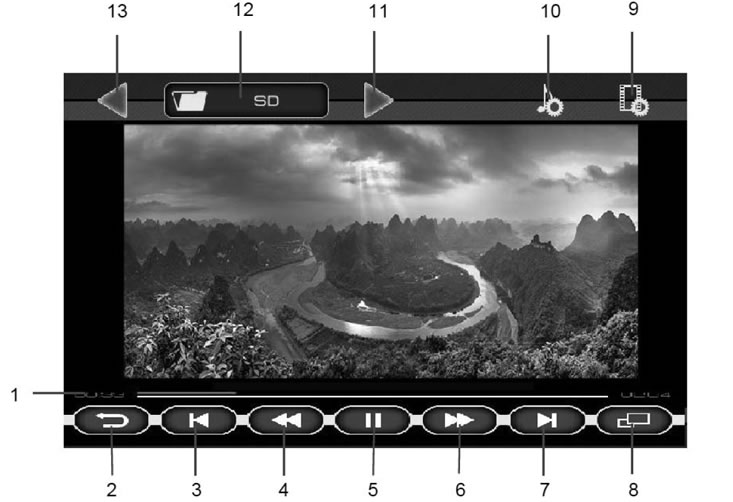
Figure 7. Video file playback window
- 1 - video file playback time indicator;
- 2 - button to return to the video file selection menu;
- 3 - | ◀ button to go to the beginning of the previous file;
- 4 - ◀◀ button to enable fast playback of a video file backwards;
- 5 - ||/ ▶ playback stop button (pause). Pressing the button memorizes the playback position. And when you return to this page, playback continues from the remembered position;
- 6 - ▶▶ button to enable fast forward playback of a video file;
- 7 - ▶ | button to go to the beginning of the next video file;
- 8 - button to enable full-screen playback mode;
- 9 - button to go to the Video settings window;
- 10 - button to go to the sound settings menu;
- 11 - go to the next folder to play video files;
- 12 - name of the current folder;
- 13 - go to the previous folder to play video files.
Clicking on the time indicator allows you to continue playback from any point in the video file.
To enable full-screen playback mode, press button 8 (figure 7) or on the image.
To exit full-screen playback mode, press once anywhere on the screen.
If you press the II button (5) while playing a video file (figure 7), and then press the back button (button 2, figure 7), then you will be taken to the main menu and to the "Video" button (figure 2) the pause indicator appears. This mode allows you to resume playing a video file from the point where you paused.