



Attention! Please observe the legal provisions regarding the use of the telephone while driving.
Note: This system supports the following services: Bluetooth® Specification version 1.1 or later (Recommended: version 2.1+EDR).
Profiles:
- HFP (Hands Free Profile) version 1.0 or later.
- RVAR (Phone Book Access Profile) version 1.0 or later.
- A2DP (Advanced Audio Distribution Profile) version 1.0 or later.
- If your mobile phone does not support HFP, you cannot register your phone and use the RVAP and A2DP services separately.

Bluetooth® is a registered trademark of Bluetooth SIG, Inc.
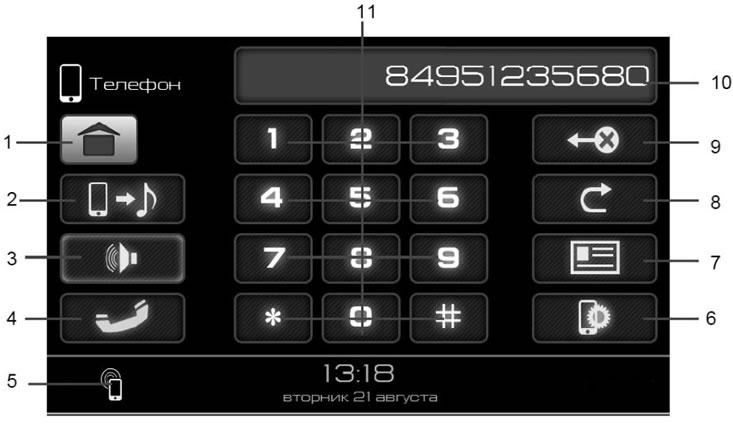
Figure 10. The "Phone" mode window
- 1 - button to go to the main menu;
- 2 - button to enable playback mode of audio files from the phone;
- 3 - button to turn off the loudspeaker mode when talking on the phone;
- 4 - call/disconnect button;
- 5 - indication of connected phone;
- 6 - button to go to the phone settings menu;
- 7 - button to go to the phone book;
- 8 - Redial button;
- 9 - button to delete the last entered character;
- 10 - subscriber number display field;
- 11 - dialing keypad.
Connecting a Bluetooth® enabled phone
Before connecting, make sure your phone has Bluetooth® functionality.
To connect to the radio, turn on Bluetooth® on your phone. If your phone has a discoverable mode, turn it on. Next, in the phone settings menu, click the "Search for devices" button.
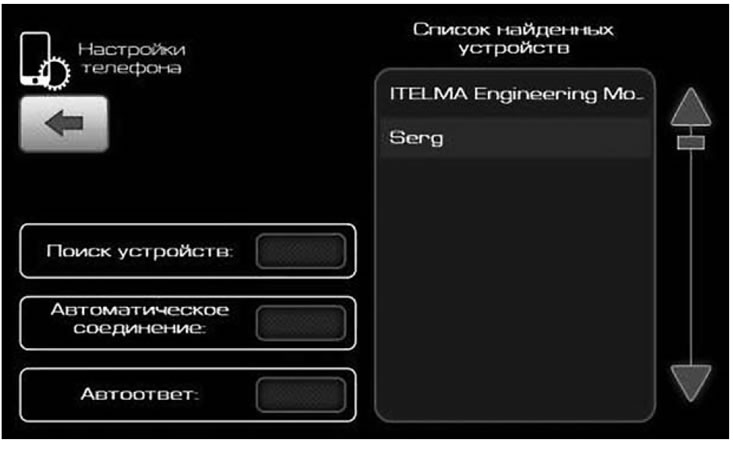
Telephone connection window
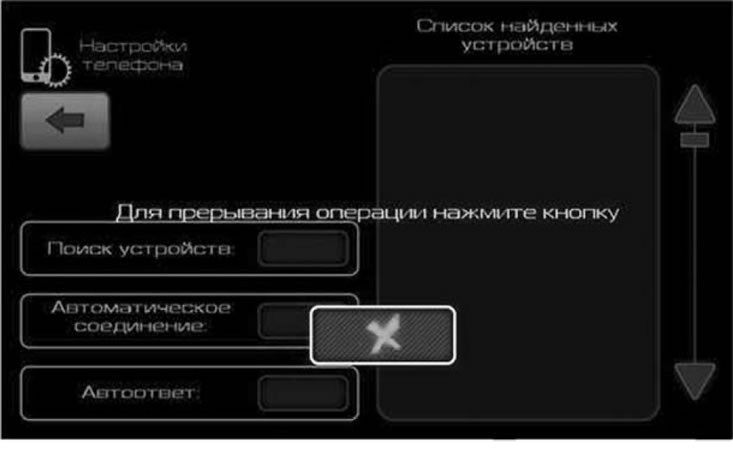
Download window (option 1)
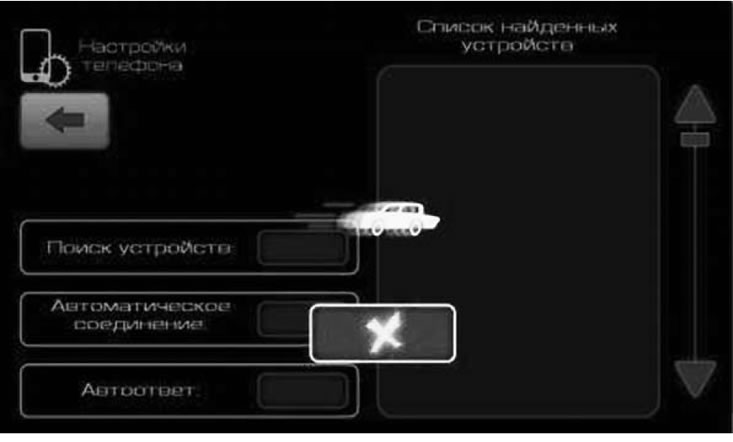
Download window (option 2)
Once the search is complete, find your phone's name in the list of detected devices. Select it from the list by single clicking. A request to confirm the connection will be sent to your phone and you will be asked to enter a password. To establish a Bluetooth® connection with the device, enter the password "0000" on your phone. Wait until the connection is complete. Return to the Phone window.
Confirmation of connection to the phone is indicated by the appearance of the phone symbol (5) (figure 10) in the lower left corner in the following windows: main menu, phone, radio, audio, video, photos, settings, information.
Important! The procedure for searching for Bluetooth® devices must be performed in the telephone connection settings menu of the radio device.
The "Automatic connection" button is designed to restore the connection with the phone after the Bluetooth® signal from the mobile device has disappeared.
The "Auto Answer" button is designed to automatically accept an incoming call.
The radio receiver can only work with one telephone at a time. To connect another phone to the radio, you need to select the name of the found phone in the list, or repeat the search by selecting "Search for devices".
Attention! If the phone is not registered with the radio within 1 minute or the Bluetooth® function does not work correctly, it is recommended to reboot the device by long pressing the volume control knob 5 (figure 1).
- Note: Some models of cell phones may not function properly in Bluetooth® mode with this radio, but this does not indicate a malfunction. To check the functionality, test the radio with another cell phone.
- Correct operation with a phone using two or more SIM cards in Hands Free mode is not guaranteed. It is recommended that you refer to the user manual of this phone.
Dialing a number
Select the operating mode of the phone by successively pressing the MODE button (figure 1) on the front panel or by pressing the "Phone" button (figure 2) in the main menu on the display. Dial the number using the numeric keypad (buttons 11, figure 10). To correct typing errors, use button 9 (figure 10). Pressing once deletes the last character entered. Hold button 9 (figure 10) more than one second allows you to delete all entered characters. Press button 4 (figure 10) to call a subscriber, a dialogue window appears. To end the call, press button 4 (figure 11). To redial the last number dialed, press button 8 (figure 10).
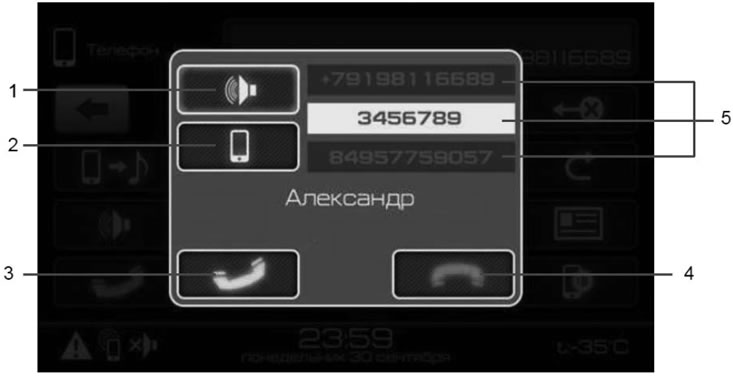
Figure 11. Telephone connection window
- 1 - button to transfer the conversation to speakerphone (car audio system);
- 2 - button to transfer the conversation to the phone;
- 3 - call acceptance button;
- 4 - end call button;
- 5 - list of phones (the active subscriber number is highlighted).
When a call is received on a mobile phone, the radio receiver switches to BT mode and a dialogue window appears with the subscriber's number. To receive a call, press button 3 (figure 11). To turn off the speakerphone during a call through the car audio system and continue the conversation through the phone, press button 2 (figure 11). To return to speakerphone, press 1 (figure 11). To end the call, press button 4 (figure 11).
To go to the phone book window, press button 7 (figure 10). When you first connect, the phone book from your phone will be downloaded. The download time depends on the size of the phone book and may take several minutes. Contact photos from your phone are not transferred.
To make a call from the phone book, you need to touch the desired entry in the list (figure 12), after which the telephone connection window will be displayed (figure 11).
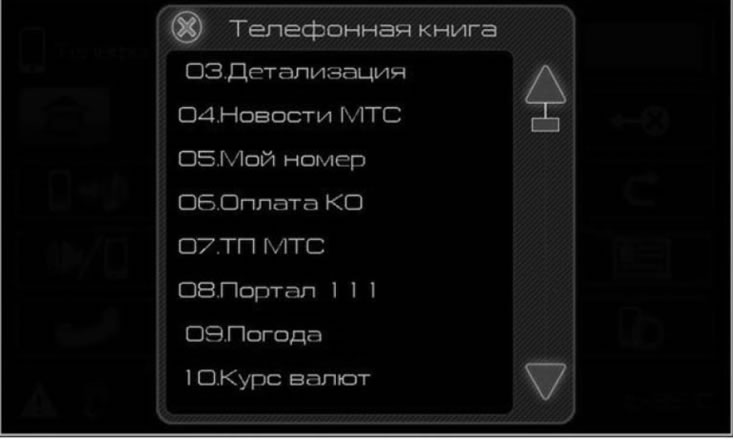
Figure 12. Phone book window
To call one of the contact numbers, you need to select it from the list (5) (figure 11) and press button 3 (figure 11). To cancel, press button 4 (figure 11).
Playing audio files from your phone
In Bluetooth® mode, provided that the phone supports the "A2DP" protocol, it is possible to listen to audio files played on a mobile phone through the car's audio system.
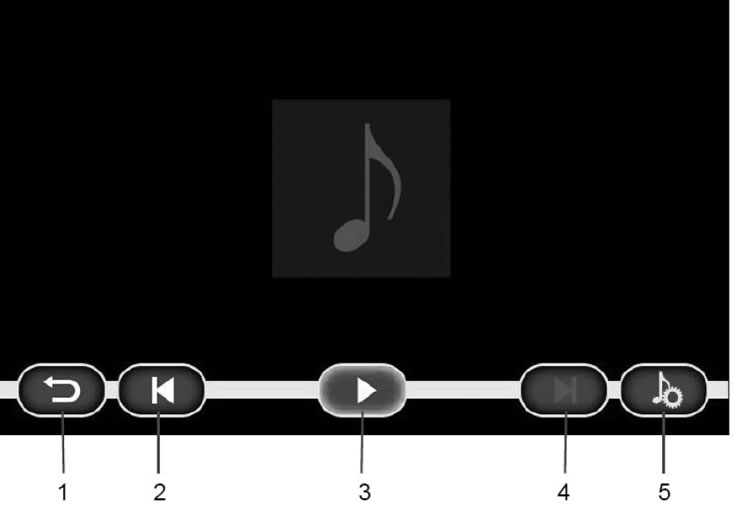
Figure 13. Window for playing audio files from a phone
- 1 - return button to file selection menu;
- 2 - | ◀ button to turn on playback of the previous file;
- 3 - ||/ ▶ stop/play (pause) button. Pressing the button memorizes the playback position. And when you return to this page, playback continues from pause;
- 4 - ▶ | button to turn on playback of the next file;
- 5 - button to go to the sound settings window.
You can switch to this mode by pressing button 2 (figure 10). The screen for playing audio files from the phone is similar to the screen for playing audio files from the SD and USB memory cards and has the following control buttons (figure 13). Information about the file being played is not displayed.
When you press the start playback button (button 3, figure 13) a player is launched in the background on the phone, and when opened, you can see information about the track being played. You can control playback from your phone's player.
During an incoming/outgoing call, audio file playback is paused.
Support for audio file formats for playback via Bluetooth® is limited by the capabilities of the player in the phone.
You can switch from the mobile phone audio listening mode to another mode and back by pressing the MODE button (figure 1).