



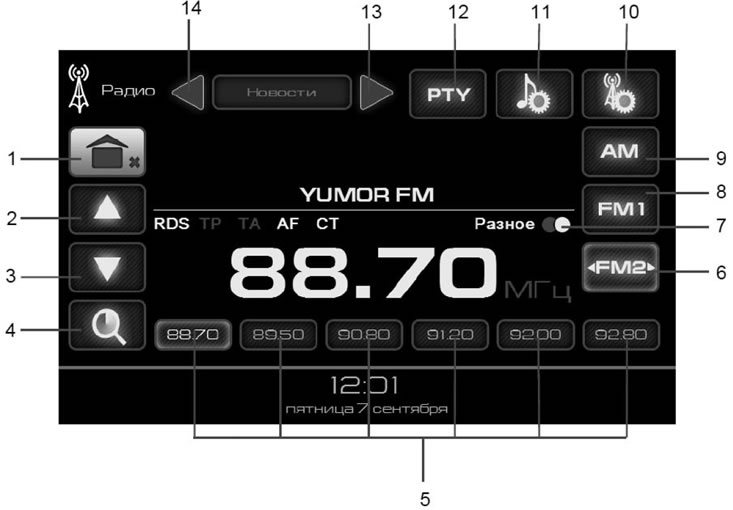
Figure 3. "Radio" mode window
- 1 - button to go to the main menu;
- 2 - frequency increase button;
- 3 - frequency decrease button;
- 4 - button to enable automatic tuning mode to stations/button to view saved radio stations (short press);
- 5 - buttons for stations stored in memory;
- 6 - FM2/FM3/FM4 - buttons for switching on VHF2 band groups;
- 7 - button for switching the stereo-mono playback mode;
- 8 - FM1 - VHF1 range on/off button;
- 9 - AM - button to turn on the CB range;
- 10 - button to go to the Radio settings menu;
- 11 - button to go to the sound settings menu;
- 12 - PTY - filter of the type of transmitted programs for the automatic search mode of radio stations;
- 13-14 - buttons for selecting the type of programs transmitted.
Switching to radio reception mode
Switching to radio reception mode is done in one of the following ways:
- with the Radio button in the main menu (figure 2);
- removing all external storage devices (USB flash drive, SD card);
- mODE button (figure 1).
AM, FM1, FM2-FM4 buttons (figure 3) allow you to select the required range of work:
- the FM1 button switches the radio receiver in the range (65-74) MHz;
- the FM2-FM4 button switches the radio receiver in the range (87.5-108) MHz;
- the AM button switches the radio receiver in the range (522-1620) kHz.
Long press button 1 (figure 3) leads to an exit to the main menu with the radio sound turned off. Short press of button 1 (figure 3) allows you to go to the main menu without turning off the Radio.
Tuning to a station
Automatic search (autosearch)
To enable automatic tuning (autosearch) up (down) by frequency press button 5 (2) or 6 (3) (figure 3) and hold it for more than 2 seconds. After tuning to a radio station, auto search will stop.
To turn off auto search (before tuning to a radio station) touch any part of the screen.
Manual setting
By successive short presses of buttons 5 (2) or 6 (3) (figure 3) set the required tuning frequency.
Automatic scanning and saving of stations
To enable automatic scanning and saving radio stations, press and hold button 4 for 2 seconds (figure 3), after this, the radio receiver will automatically tune to the frequencies of eighteen stations and remember them. After saving radio stations, the radio will automatically switch to listening to the first saved radio station.
To stop the auto-save mode, tap anywhere on the screen.
Saving stations to memory and listening to saved stations
To save the selected radio station in the radio receiver's memory, press and hold one of the buttons 5 for 2 seconds (figure 3). Switching to a saved radio station is done by briefly pressing one of the buttons 5 (figure 3).
Stereophonic reception of radio stations
During stereo reception, the symbol OO appears on the display button 7 (figure 3). By pressing button 7 (figure 3), you can force the radio receiver to switch to mono mode.
Note: Stereo mode is available in VHF1 and VHF2 bands, provided that the radio station is received stably.
Search stations by type of programs broadcast
To select the program type when receiving RDS stations, press the PTY button (figure 3). (After pressing, the PTY button backlight should turn on)*. Buttons 3 (13) and 4 (14) (figure 3) allow you to select the type of program that will be used in the automatic radio station search mode.
To automatically search for a radio station broadcasting the selected program type, press and hold the ▲ (2) or ▼ (3) buttons in Figure 3 for 2 seconds.
If there is no radio station with the selected program type, the tuning frequency will return to the original one.
To turn off automatic station type search, press the PTY button (figure 3).
Note: PTY function activation and station search by program type are available only when RDS is enabled and only in the VHF2 range.
If you are using a program type (PTY) search, please make sure that the corresponding radio program type is broadcast in your area. Otherwise, automatic tuning to the radio station is not guaranteed.
Caution: Turning on the RDS function may reduce the number of stations received by the radio. Please make sure that RDS stations are broadcasting in your region.