



Note: The conditions for correct connection of data carriers are given in appendix 3.
You can switch to the audio file listening mode in the following ways:
- connect SD card if USB drive is not connected;
- connect USB drive if SD card is not connected;
- pressing the Audio button (figure 2);
- by pressing the MODE button (figure 1), if one of the devices is connected: SD card and/or USB flash drive.
Note: When the Audio mode is in the "pause" state (indicator 8, figure 2) re-entering the Audio mode will switch the radio receiver to the audio file playback mode from the point where listening was stopped.
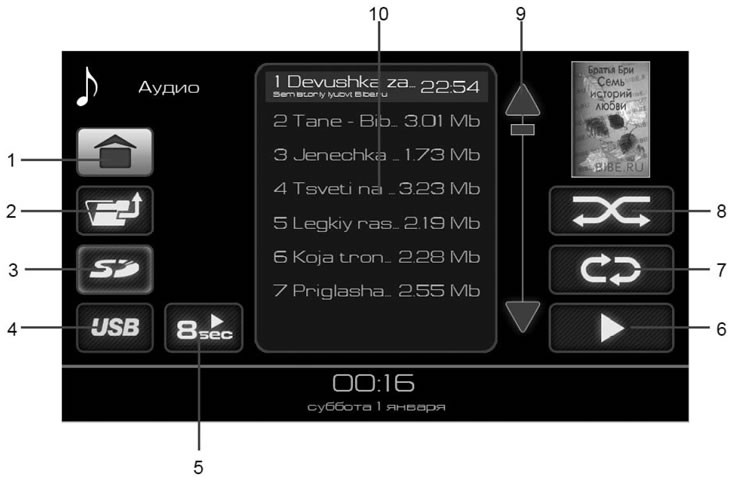
Figure 4. Audio file list window
- 1 - button to go to the main menu;
- 2 - button to move from a folder one level up;
- 3 - SD memory card selection button as a source;
- 4 - button to select USB memory stick as a source;
- 5 - button for overview playback of files in a folder, 8 seconds from the start of playback;
- 6 - audio file playback button;
- 7 - button to enable repeat playback mode for the selected file/folder;
- 8 - button to turn on random playback mode;
- 9 - buttons for scrolling the list of audio files;
- 10 - list of audio files.
Select audio files
The radio receiver supports playback of audio files in MP3, WMA, WAV formats.
Requirements for music files:
- File names must be no longer than 64 characters.
- The directory tree must have no more than 8 levels.
- The artist name, album title and title of a track recorded in MP3 format are displayed only if this information is present in the form of a U3 tag.
- Playlists are not supported.
- WMA files (Windows Media Audio) are supported. The exception is files with additional DRM protection (Digital Rights Management), which are not supported by the radio receiver.
- The radio receiver supports MP3 files with constant (CBR) and variable (VBR) bitrates from 32 to 320 kbps.
- The playback duration of files with variable bitrate may not be displayed accurately.
Note: Playback of audio files with settings other than those specified in this manual is not guaranteed.
Playable audio files and folders are displayed in the list (10) (figure 4). Double-clicking on a folder image will display a list of audio files in that folder. To exit the folder, press button 1 (figure 4).
To start playing audio files, you need to do the following:
- or double-clicking on the selected audio file allows you to play it, with the button for enabling the repeat playback mode available (button 7, figure 4).
- or clicking on the play button for audio files (button 6, figure 4) allows you to play all audio files in the list (10) (figure 4).
- or selecting a folder by single-clicking on the folder image in the list (10) in Figure 5, and then clicking the audio file play button (button 6, figure 4), allows you to play all audio files located in the selected folder and all its subfolders.
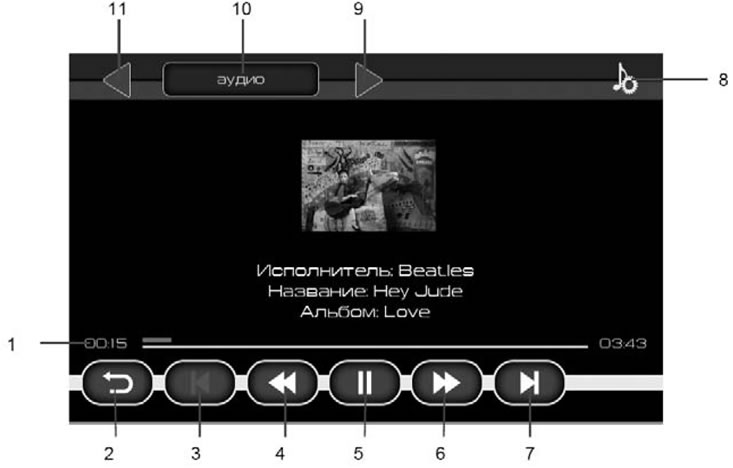
Figure 5. Audio file playback window
- 1 - audio file playback time indicator;
- 2 - button to return to the audio file list window;
- 3 - | ◀ button to turn on playback of the previous audio file;
- 4 - ◀◀ button to enable fast backward playback of the file;
- 5 - ||/ ▶ stop/play (pause) button. Pressing the button memorizes the playback position. And when you return to this page, playback continues from pause;
- 6 - ▶▶ button to enable fast forward playback of the file;
- 7 - ▶ | button to turn on playback of the next file;
- 8 - button to go to the sound settings menu;
- 9 - go to the next folder to play files;
- 10 - go to the previous folder to play files;
- 11 - name of the current folder.
If an audio file has an attached image and description, this information is displayed on the display while the audio file is playing.
Note: The size of the attached image in the audio file must not exceed the maximum allowed (see the section "Selecting image files").
Clicking on the time indicator allows you to continue playback from any point in the audio file.
To stop playback, press button 5 (figure 5).
If you press the "Pause" button while playing an audio file (button 5, figure 5), and then press the back button (button 2 figure 5), then you go to the main menu, and in the Audio button (button 4, figure 2) the pause indicator appears (indicator 8, figure 2). This mode allows you to return to playback of the audio file from the point where you paused.