



Creating a connection with a Bluetooth® device
To use the Hands-Free Telephony system, you must pair your Bluetooth® mobile phone with the vehicle's multimedia system before using the Hands-Free mode for the first time. The connection created will allow the multimedia system to recognize and remember the Bluetooth® phone.
You can connect up to 5 devices to the system, but only one of them can work in the "Hands-Free" mode. Pairing is done directly from the multimedia system or via a smartphone.
The system and your phone must be turned on. Make sure that Bluetooth® on your mobile phone is turned on, visible and can be identified by other devices (for more information, please refer to your phone's instructions).
Note: Depending on the brand and model of your device, the Hands-Free feature may be partially or completely incompatible with your vehicle's system.
Pairing a smartphone with Bluetooth® from the multimedia system side
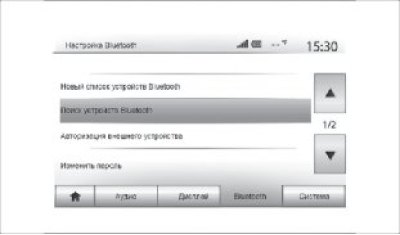
Figure 76. Bluetooth® Pairing
- turn on the Bluetooth® connection on your phone;
- click "Settings" → "Bluetooth" → "Search for Bluetooth devices";
- make sure your phone is turned on and visible via Bluetooth® link;
- select your phone from the list of available devices found by the system;
- a message will appear on the smartphone screen
(Main material on the website www.Ladaman.ru)
Depending on your phone, tap "Pair," "Connect," or "Connect" to allow the connection.
- Depending on your phone, enter the code displayed on the multimedia system screen on your phone's keypad
- A second message will appear on the smartphone screen, offering automatic pairing with the multimedia system upon subsequent use. Give this permission so that you do not have to repeat all these actions again. Now your phone is connected to the multimedia system
Note: The connection establishment time depends on the make and model of your phone.
If the connection is not established, repeat this operation. If the system does not see your phone when searching for Bluetooth® peripheral devices, refer to the operating instructions for your phone.
Note: For some phones, the system may require you to confirm the transfer of the phone book to the system during connection.
Pairing a Bluetooth® phone with the multimedia system from the phone side
- Turn on the Bluetooth® connection on your phone and the system;
- in Media Nav Evolution, in the "Main Menu" click "Settings" → "Bluetooth" → "Authorize External Device". This will make the system visible to other Bluetooth® devices;
- a message will appear on the screen with a password and the time during which the system will remain visible;
- on your phone, go to the list of available Bluetooth® devices;
- select the Media Nav Evolution multimedia system from the available devices within the given time and depending on the phone, enter the password shown on the system screen on your phone's keyboard
A message will appear on the smartphone screen indicating that the smartphone has been successfully connected to the Media Nav Evolution multimedia system.
Note: The time it takes to establish a connection varies depending on the make and model of your phone. When you turn on the Media Nav Evolution system, the last connected device will automatically connect to the system.
If the connection does not occur, repeat this operation.
Please note: The Hands-Free System is designed to make telephone communication easier and reduce risks, but it cannot eliminate them completely. Be sure to comply with the applicable laws of the country in which you are located.
Unpairing a Bluetooth® device from the Media Nav Evolution system
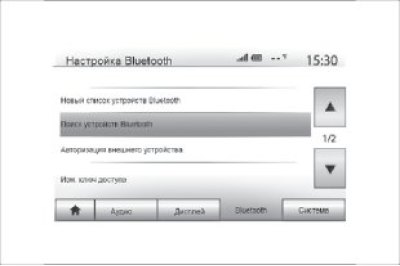
Figure 77. Deleting Bluetooth® device connections
Removing a device allows you to erase information about your phone from the Hands-Free system memory.
Go to the "Main Menu" and click "Settings" → "Bluetooth", then "New Bluetooth Device List". Click the trash can icon 2 opposite the name of the device you want to remove from the list. Confirm your selection by clicking "OK".
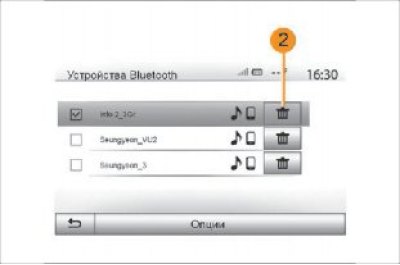
Figure 78. Deleting the selected connection
Remove connections from all Bluetooth® devices to the Media Nav Evolution system.
You can also delete all devices that were previously connected to the "Hands-Free" system memory. In the "Main" menu, click "Settings" → "Bluetooth" → "New Bluetooth device list", then "Options" and "Delete all". Confirm the deletion of all connected devices by pressing "OK".
"Change Access Key"
You can choose your own four-digit password to allow Bluetooth® devices to connect to the system.
In the "Main Menu", click "Settings" → "Bluetooth" → "Change access key".
Connecting and disconnecting Bluetooth® devices
Connecting a pre-paired Bluetooth® phone.
The phone cannot be connected to the telephone system.
"Hands free" without any pre-established connection. See chapter "Create/Delete Connections with Bluetooth® Devices".
The phone must be connected to the telephone system.
"Hands free" to provide access to all its functions
Automatic connection
When you turn on the ignition of your vehicle, the Hands-Free system will begin searching for nearby phones that have been pre-paired (the search may take about a minute) It will automatically connect to the last connected phone if:
- bluetooth® connection of the phone is enabled;
- when making a connection, you previously allowed your phone to be automatically connected to the system
Note: If a conversation is ongoing at the time of connection, it will be automatically transferred to the car speakers. For correct automatic recognition of devices when pairing with the system, it is recommended to accept and confirm all messages that appear on your smartphone.
Manual connection
In the "Main Menu" do the following:
- click "Phone";
- click "New Bluetooth Device List";
- select the name of the phone you want to connect
Your phone is connected to the multimedia system
Connection failed. If the connection fails, make sure that:
- the device is turned on;
- the device is configured to accept requests for automatic connection to the system;
- the device battery is charged;
- the device has a pre-established connection to the "Hands Free" system;
- bluetooth® function of the device and system is enabled
Note: Long-term use of the Hands-Free system will quickly drain the device's battery.
Change connected phone
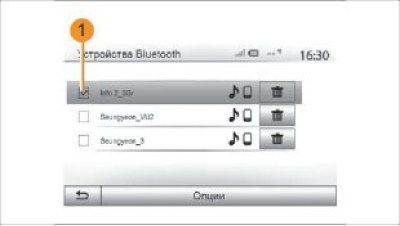
Figure 79. Marking the established connection
You can connect or disconnect a Bluetooth® device at any time.
Click "Media Device" in the "Main Menu", then "Settings" and "Device List".
Click on the device to be connected and confirm your selection by clicking "OK".
A small mark 1 appears next to your phone's name, indicating that the connection has been successfully established.
Disconnecting a connected phone
To disconnect your phone from Media Nav Evolution, click on the name of your device. The small 1 mark will disappear.
If the phone is in talk mode when you turn it off, the conversation will automatically switch from the car speakers to the phone.