



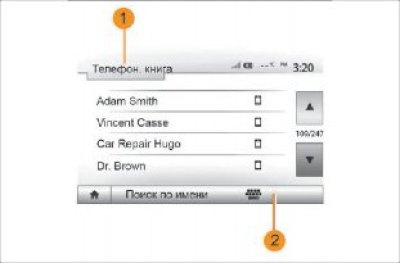
Figure 80. Telephone directory
In the Phone Device menu, press 1 to scroll through the menu list, then Phone Book to enter the system phone book.
Using the telephone directory
You can use the phone book data stored in the phone memory.
Once the system is connected to a Bluetooth® phone using Bluetooth® wireless technology, the numbers in your phone's phone book will be transferred to the system's phone book if the contacts are in your phone's memory.
Note: For some phones, the system may require confirmation of transferring the phone book to the system upon connection.
Calling a number from the phone book
After selecting a contact from the phone book, select the number you wish to call to make the call.
Search for a contact in the phone book
Press 2 and enter the last name or first name of the contact you want to contact using the numeric keypad.
Note: Depending on the make and model of your phone, transferring your contacts to the multimedia system may not work.
Attention! It is recommended to stop the car to dial a number or search for a contact.
Making an outgoing call and receiving an incoming call
Calling a contact from your phone book
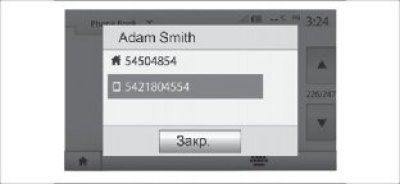
Figure 81. Calling a contact from the phone book
With the phone connected, in the Phone Device menu, select Phone Book from the drop-down menu 1 (see figure 80).
(Original publication on the website: LADAMAN)
Select contact (or the corresponding number if the contact has multiple numbers). The call will start automatically after you click on the contact number.
Call a contact from your recent calls list.
You can use your phone's call log to call the number.
Once the device is connected to a Bluetooth® smartphone via Bluetooth® wireless technology, phone numbers from the smartphone's All Calls, Outgoing Calls, Incoming Calls, and Missed Calls lists are automatically transferred to the multimedia system's call log.
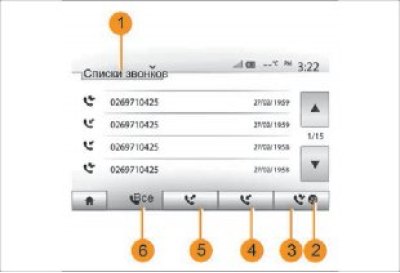
Figure 82. Calling a contact from the recent calls list
Dialing a number
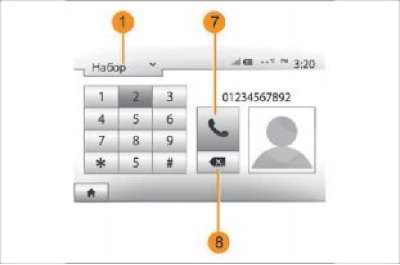
Figure 83. Dialing a number
Press 1 to scroll through the list and then "Call lists". Press 6 to open the list of all calls.
Press 5 to open the list of outgoing calls. Press 4 to open the list of incoming calls. Press 3 to open the list of missed calls.
Note: Mark 2 shows the number of missed calls.
In each list, contacts are displayed from the most recent to the very first. Select a contact to call.
Press 1 to scroll through the list, then "Dial" for the number you want to call.
Press the number buttons to dial, then press 7 to call.
To delete a number, press 8. Long press 8 to delete all numbers at once.
Attention! It is recommended to stop the car to dial a number or search for a contact.
Accept the challenge
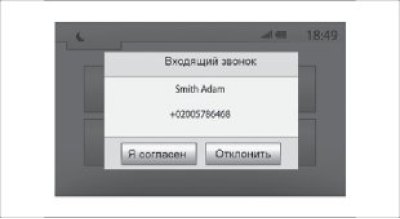
Figure 84. Incoming call message
When you receive a call, a message will appear on the multimedia system screen containing the following information about the caller:
- contact name (if his number is listed in the telephone directory);
- caller ID;
- "Unknown number" (if the number cannot be displayed)
Note: If an incoming call message appears on the screen while driving in navigation mode, accept or reject the call to return to the navigation screen.
You can answer or reject a call using the MMC controls on the steering wheel (see chapter "Description of controls").
Actions during a telephone conversation
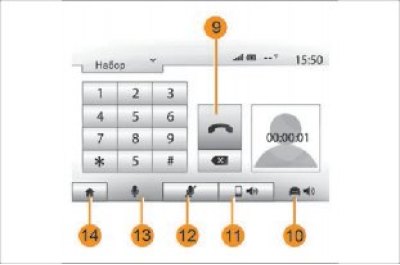
Figure 85. Actions during a telephone conversation
During a telephone conversation you can:
- turn on/off the microphone by pressing 12 or 13;
- end the call by pressing 9 and hanging up;
- mute the sound on the phone speaker by pressing 11;
- mute the car speaker by pressing 10;
- press 14 to return to the previous screen (for example, to the navigation screen) or to the main screen
Rear view camera
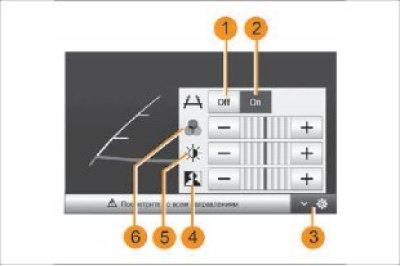
Figure 86. Rear view camera
Operating principle
When reverse gear is engaged (and for no more than 5 seconds after engaging another gear) the navigation screen displays the situation behind the car along with the dimensions.
When you reach the red zone, watch the bumper to stop at the planned location.
Note: Make sure that the rear view camera is not blocked (mud, snow, etc.).
Settings
Press 3 to view the list of settings.
You can turn the display of dimensions on or off by pressing 1 or 2.
Press "+" or "-" to adjust contrast 4, brightness 5 and colors 6.
Note: For more information about the rear view camera, please refer to your vehicle owner's manual.
Please note: This system is an additional means of making driving easier. Despite its presence, the driver must always be careful and attentive. The driver must always be prepared for any unexpected events that may arise while driving. When maneuvering, pay close attention to the possible appearance of children, animals, baby carriages, cyclists, or small obstacles in the way (for example, a medium-sized stone, a column, etc.).
The screen displays a reversed image. The dimensions are images projected onto a flat road; they should not be taken into account when projecting onto vertical or horizontal objects
The image of objects appearing at the edge of the screen may be distorted.
In case of too much light (snow, car in direct sunlight, etc.), the camera's view may be obstructed.
If the trunk is open or not closed properly, the message "Trunk open" may appear, and the image from the camera disappears.