



Precautions for use
For safety reasons and to avoid property damage, be sure to follow the instructions below when using the system. Be sure to comply with the applicable laws of the country in which you are located.
Attention! Precautions when handling the system:
- Use the controls (on the panel and on the steering wheel) to view information on the screen when traffic conditions permit.
- Adjust the volume to a moderate level that allows you to hear surrounding noise.
Precautions when navigating:
- The use of a navigation system in no way eliminates the driver's responsibility and attentiveness while driving.
- Depending on the geographic zones, the map may not show information about new roads. Please be careful. In all cases, the Road Traffic Regulations and road signs take precedence over the instructions of the navigation system.
Precautions to avoid equipment damage:
- To avoid property damage and fire, do not disassemble or modify the system in any way.
- For troubleshooting or dismantling, please contact your authorized dealer.
- Do not insert foreign objects into the player.
- Do not use liquids containing alcohol and/or spray aerosols in this area.
Precautions when using the phone:
- There are laws regulating the use of phones in the car. Some laws even prohibit the use of a hands-free phone system while driving: the driver must be focused on driving.
- Talking on the phone while driving is a distraction and a hazard at all stages of phone use (dialing a number, making a telephone call, looking up a number in a telephone directory).
Note: This user manual contains descriptions of models based on their technical characteristics existing at the time of writing. The manual covers all types of equipment installed on vehicles of this model. However, its availability on your vehicle depends on the configuration and options selected. Depending on the configuration, the appearance of the screens and their composition on your vehicle may differ from those listed in the user manual. The manual may also contain information about the equipment that is expected to be installed on vehicles over the next year.
For more detailed information, please contact your authorized dealer.
Introduction
The multimedia system (MMS) performs the following functions:
- radio system in FM, AM and DAB formats;
- control additional audio devices (mP3 player, audio player, USB flash drive, phone, etc.);
- manage your content with the Aha app;
- navigation assistance;
- bluetooth® Hands-Free Telephony System;
- parking assistance system (rear view camera).
Radio functions
The multimedia system allows you to listen to FM radio stations (frequency modulation), DAB (digital broadcasting) и AM (amplitude modulation).
The DAB system provides better sound quality and consistently displays text information about the radio station (Intellitext) on screen:
- news;
- results of sports competitions, etc.
The RDS system allows you to display the names of some stations or text information transmitted by FM radio stations:
- information on the general state of traffic (TA);
- emergency messages
Additional audio devices function
You can listen to music recorded on the player through the speakers installed in the car. Depending on the type of device, there are several options for connecting the player:
(Information taken from the website: «LADAMAN.ru»)
- 3.5mm jack;
- USB audio;
- bluetooth® connection
For detailed information on the list of compatible phones, please contact the brand representative or visit the manufacturer's website (if available).
Aha function
The Aha app gives you access to selected items (podcasts, internet radio, etc.).
Note: To use the full capabilities of the Aha app in your multimedia system, you must download it to your smartphone, enable location detection on your smartphone, and connect it to the audio system.
Bluetooth® Hands-Free Telephony The Bluetooth® Hands-Free Telephony system provides access to the following features without having to pick up the phone:
- call/accept/reject call;
- view a list of contacts from a phone book;
- display list of recent calls;
- call emergency services
Phone Compatibility
Some phones are not compatible with the Hands-Free system and do not allow you to take full advantage of all the features offered or do not provide optimal sound quality.
For detailed information on the list of compatible phones, please contact the brand representative or visit the manufacturer's website (if available).
Please note: The Hands-Free System is designed to make telephone communication easier and reduce risks, but it cannot eliminate them completely. Be sure to comply with the applicable laws of the country in which you are located.
Navigation assistance function
The navigation system automatically determines the geographical position of the car by receiving GPS signals and suggests you the route to the selected destination using a road map. Finally, it shows you the road to follow step by step using the screen and voice messages.
TMC – Traffic Information
This feature provides real-time traffic information.
Alerts about road hazards or dangerous road sections.
This service allows you to receive real-time alerts, such as speeding alerts or alerts about the location of hazardous road sections.
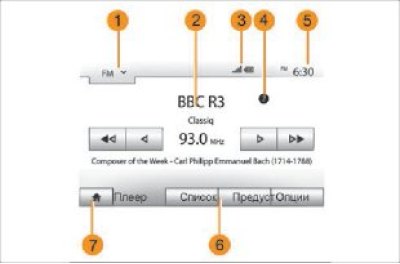
Figure 1. Menu screen.
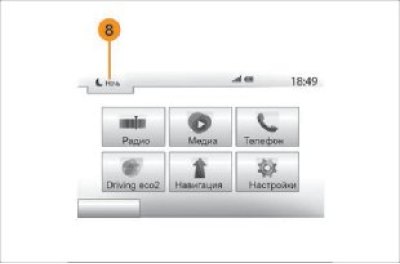
Figure 2. Menu screen (continuation)
Description of controls
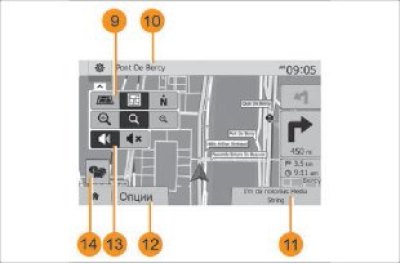
Figure 3. Navigation screen
9 – Mode selection area
10 – Map mode (2D/3D and 2D North)
11 – Name of the next street on your route
12 – Current audio information
13 – Route and map settings
14 – Turn voice guidance on/off
15 – Traffic Management Information (TMC)
You can select a screen by clicking on the desired part of the screen.
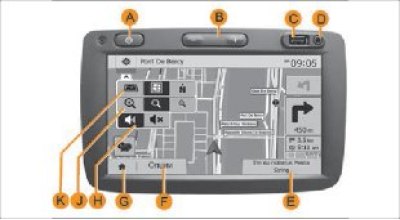
Figure 4. External appearance of MMS:
A – Short press: Turn on/off screen sleep mode
B – Volume control
C – USB connector
D – 3.5mm plug
E – Switch to the current media device (USB, AUX, AM, FM, DAB, iPod®, Bluetooth® and Aha)
F – Go to the "Settings" menu
G – Go to the "Main menu"/Telephony or additional devices: close the current window to return to the navigation system screen (for the current trip) or to the previous window
H – Turn voice instructions on/off
J – Change the map scale
K – Change map view (2D/3D/2D-North)
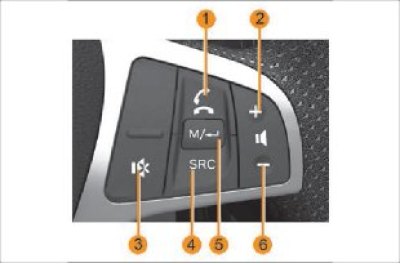
Figure 5. MMC controls on the steering wheel:
1 – Accept/reject incoming call Switch to "Phone" mode (if the phone is connected)
2 – Volume up button
3 – Sound on/off button
4 – Switching between available modes in a loop: FM Radio → AM Radio → USB Audio (if there is a connected storage device) → Music from phone (if the phone is connected) → Music with AUX (if there is a connected device)
5 – In the "Radio" mode, switching in a ring: Main window → List of remembered radio stations → List of found radio stations
In "Audio from USB" mode, switch in a loop: Playback window → File/folder list
6 – Volume down button
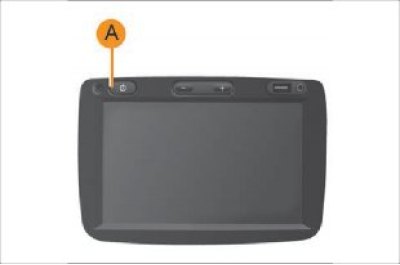
Figure 6. MMS power button.
Aha Services
The multimedia system turns on automatically when the ignition is turned on.
In other cases, press button A to turn on the multimedia system.
With the ignition off, the system can be used for no more than twenty minutes.
Press button A to turn on the multimedia system for another twenty minutes.
The system switches off automatically when the ignition is turned off.
Screen Sleep Mode
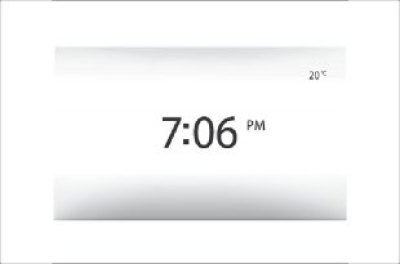
Figure 7. Screen sleep mode.
Screen sleep mode allows you to turn off the display screen.
In this mode, the radio or control system does not work.
The sleep mode screen displays the current time.
Press the A button briefly to turn the standby screen on or off.